Soils Page
After clicking on a field to begin editing on the Fields page, the user will be directed to the Soils page. The Soils page is a field-level page. The Soils page allows the user to rename the field and adjust the acres; input soil P values; and verify soils returned from the SSURGO soils database for the particular field selected in the Fields page (Just for E version). NTT returns a maximum of 3 soils for every field. These soils represent the most predominant soils in the AOI. NTT is limited to 3 soils in order to minimize model processing time.
Manage/Modify Organic Matter
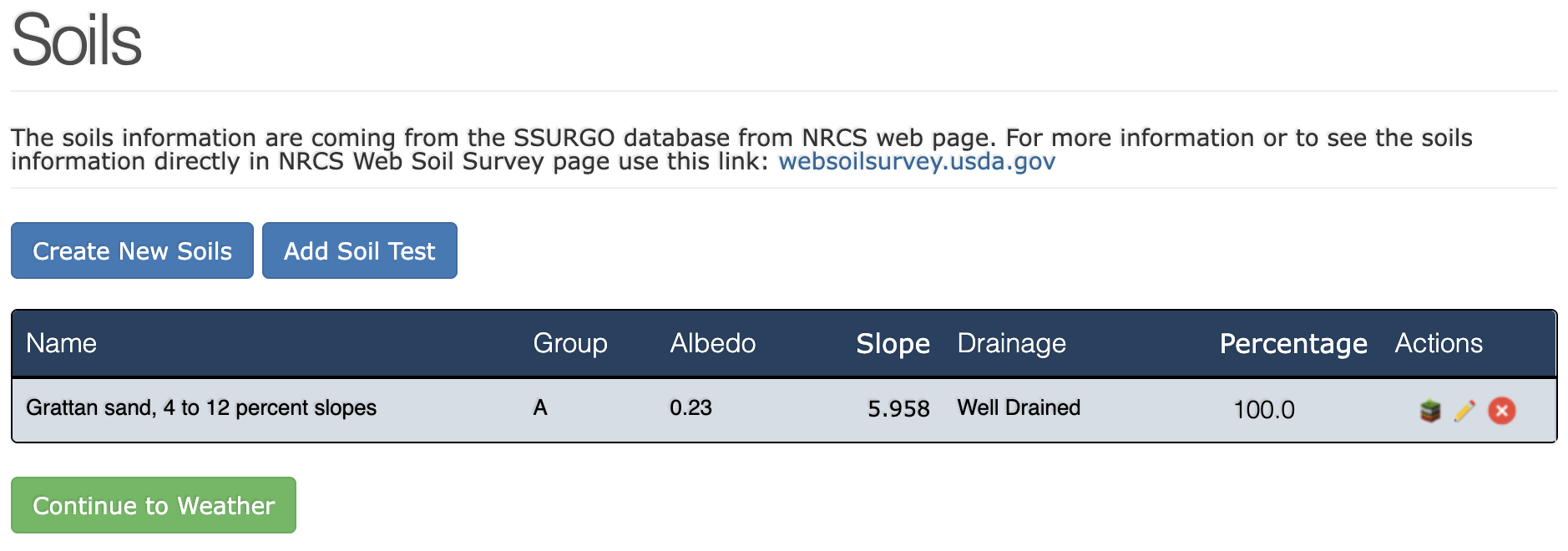
Between 1 and 3 soils will appear in the list of soils returned for your field. These represent the most predominant soils in your field as returned by the SSURGO Soils database.
NTT will return the soil name and the soil group for each soil. This data is derived from the SSURGO soils database.
The soil slope for each soil is calculated dynamically by NTT using the 30 meter Digital Elevation Model (DEM) layers associated with your field.
The default soil organic matter (%) value returned by the SSURGO soils database is displayed for each soil in the soils list. However, if the user has more precise data they may enter it here.
Percentage represents the adjusted coverage area of the soil for your field. Because NTT selects only the 3 most predominant soils, the coverage area of each is proportionally expanded to equal 100% coverage of the field.
Users may Add new soil(s) by clicking the button Add New Soil.
Add Soil Test
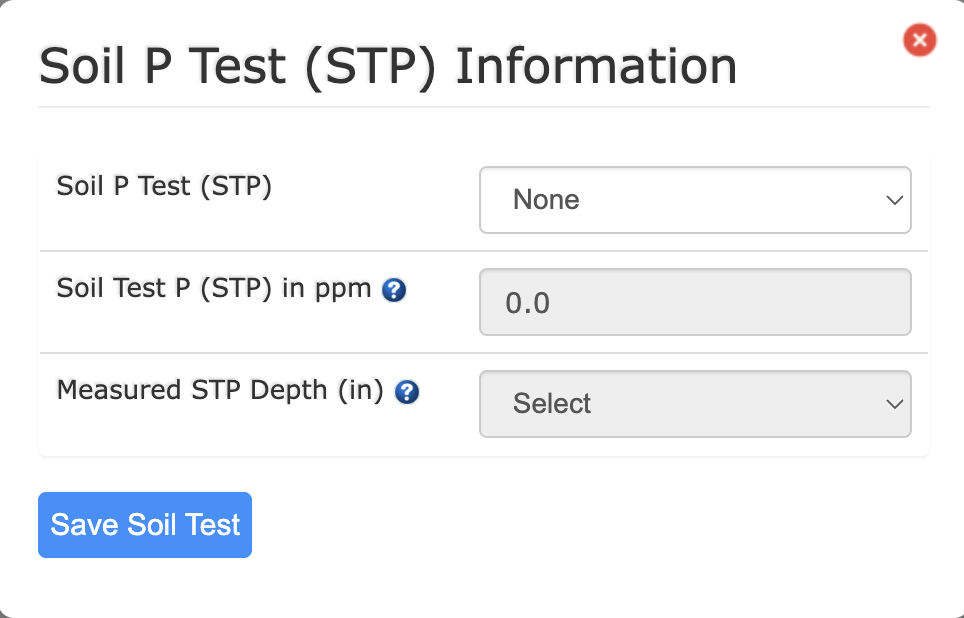
This allows you to input data from your soil phosphorus (P) Tests.
Soil Test: This is a dropdown menu where you can select the specific type of soil test that was conducted. Currently, the default selection is "None." Click on the dropdown to see a list of available soil test options.
Soil Test P (STP) in ppm: In this field, you should enter the result of your soil phosphorus test, specifically the Soil Test Phosphorus (STP) value, measured in parts per million (ppm). You will need to select the available Soil P Test to set your STP.
Measured STP Depth (in): This is another dropdown menu where you need to specify the depth in inches at which the soil sample was taken for the STP measurement. Click on "Select" to view and choose the appropriate depth from the available options. You will need to select the available Soil P Test to set your STP Depth.
Once you have entered the information for all three fields, click the blue button labeled Save Soil Test P to save the data.
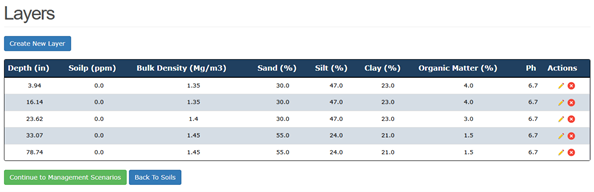
Users may add/delete soil layer from their soils list if they do not wish for it to be used in the model run. To get to the Layers page for a particular soil, simply click the  icon in the Actions column of the soil you wish to add/delete layer from.
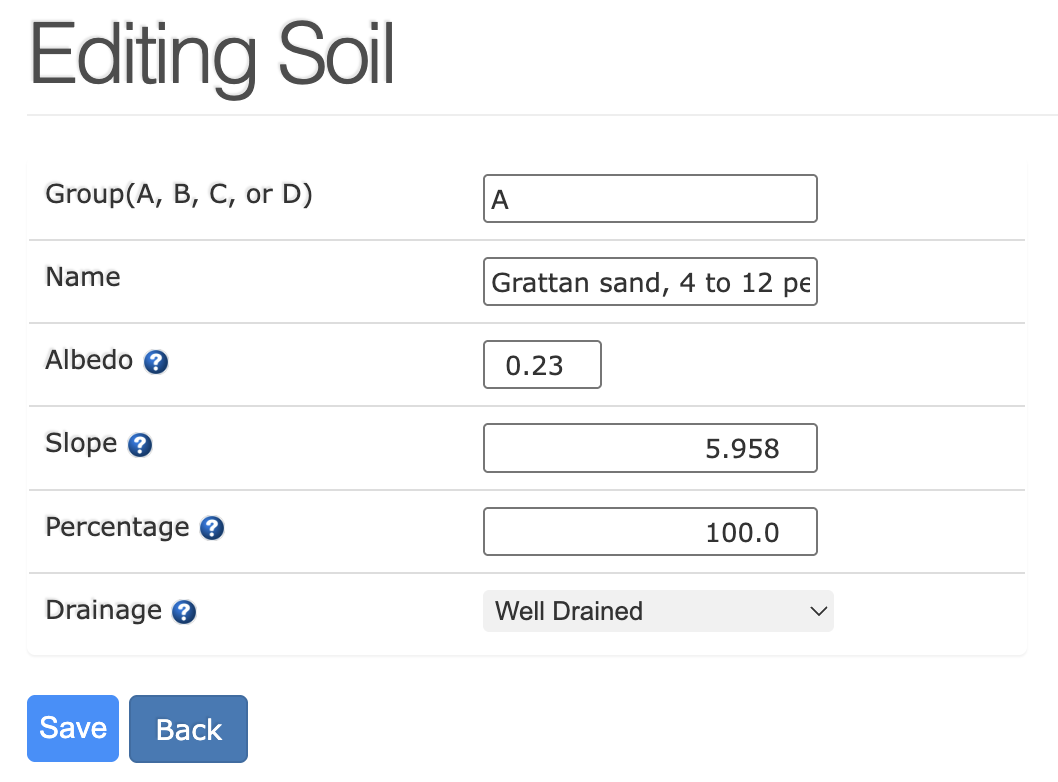
Users may edit soil from their soils list if they wish to change some values. Simply click the  icon in the Actions column of the soil you wish to edit.
Return to Table of Contents < Previous Next >